 Daily Dash
Daily Dash guide
Everything you need to go from a fresh install to a morning routine that takes two minutes.
Getting started
- Sign in to iCloud on your device. Daily Dash stores your library in your private iCloud database, so there's no account to create.
- Allow Calendars and Reminders when asked. Daily Dash reads your events and Apple Reminders through the system and shows them on Today. You can skip either and use the app's own reminders instead.
- Allow notifications so reminders can alert you. Reminder alerts are Time Sensitive, so they get through Focus modes you allow.
- Add a couple of news feeds (see News) so the Today news card has something to show.
On iPhone you'll see five tabs: Today, Notes, Links, Reminders and News. Tags, the Graph and Settings open from the buttons at the top of Today. On iPad and Mac, Tags and Graph are tabs in the sidebar and Settings lives in the app's Settings window.
Today & your brief
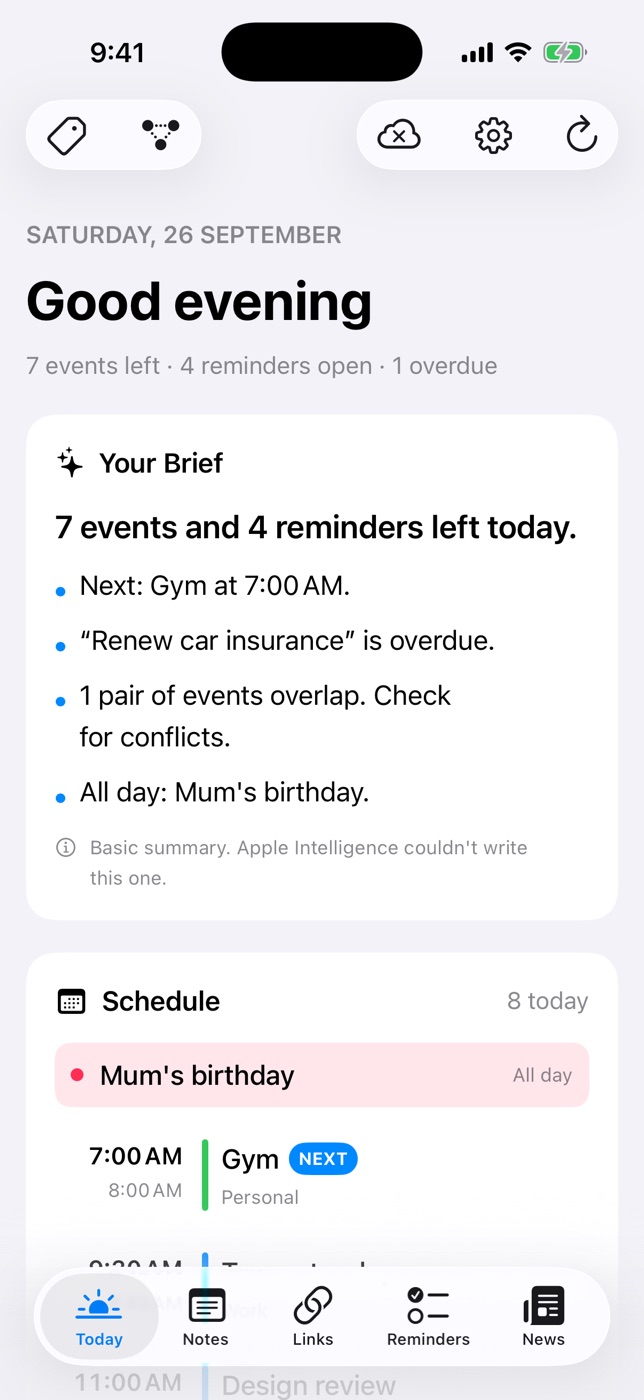
Today is the screen to open first thing. From top to bottom:
- Your Brief: a few lines about the day, like your next event, anything overdue, events that overlap and all-day items. It's written on device by Apple Intelligence. When that isn't available (older devices, or the model is still downloading), you get a rule-based summary and a small note saying so.
- Schedule: every event today. The next one is marked Next; overlapping events are flagged.
- Reminders: what's due today and overdue, from both Apple Reminders and Daily Dash's own reminders. Tick one off right here.
- News: the top headlines. Once you've read for a while, the app picks headlines you're likely to open. Filter the card by a tag to see, say, only #work feeds.
Pull down to refresh. The cloud icon at the top shows iCloud sync status in every tab.
Reminders
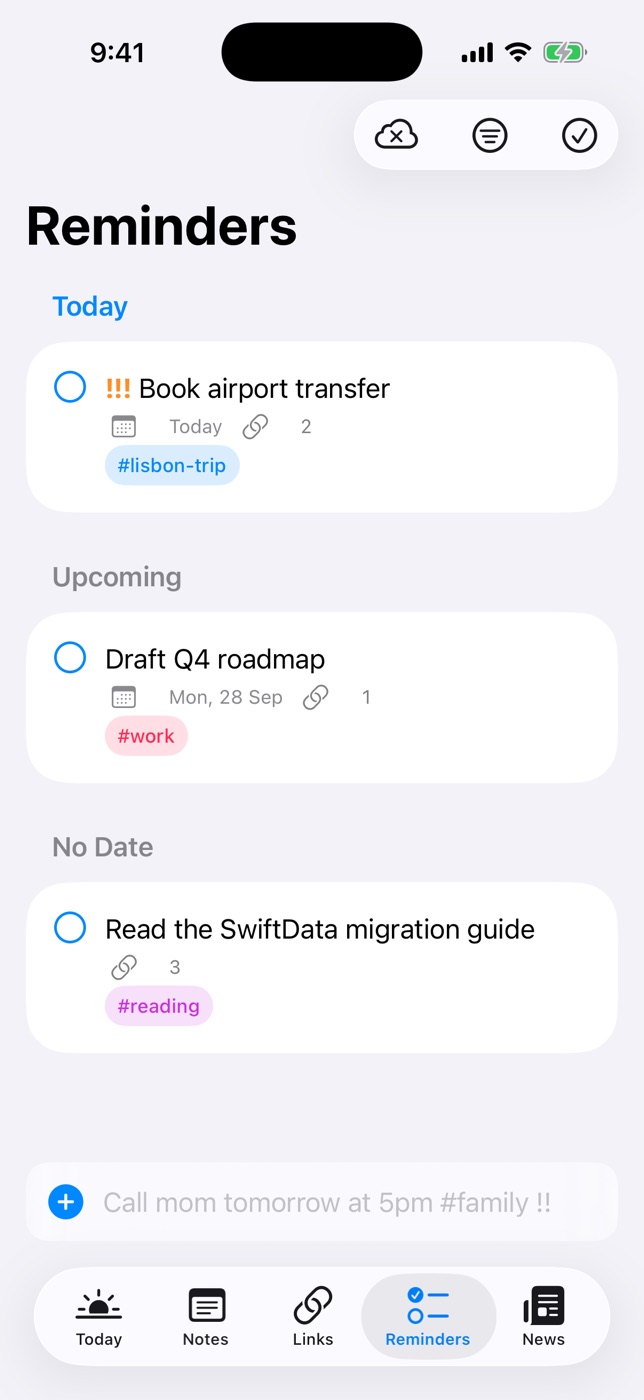
Type into the quick-add field at the bottom of the Reminders tab. A live preview shows what was understood before you save.
| You type | You get |
|---|---|
Call mom tomorrow at 5pm #family !! | Tomorrow 5:00 PM, tag family, medium priority |
Submit expenses next Friday | Next Friday |
Check the oven in 20 min | 20 minutes from now |
Take out the bins tonight | Today at 8:00 PM |
Stretch this afternoon | Today at 2:00 PM (morning 9 AM, evening 6 PM) |
Standup at 10 | 10:00 AM. A bare 8–11 means morning, 12–7 means afternoon |
Renew passport !!! | High priority, no date |
Buy milk when I leave work | Alerts as you leave your saved place “Work” |
Priority is ! low, !! medium, !!! high. Anything recognised is removed from the title, so “Call mom tomorrow at 5pm #family !!” is saved as “Call mom”.
If Settings would stop or delay your alerts (notifications off, Time Sensitive disabled), the Reminders tab tells you what to change.
Location reminders
A reminder can alert when you arrive at or leave a place instead of at a time.
- Open a reminder and choose At a Place.
- Pick a saved place, use your current location, or search and drop a pin on the map. Drag the radius to set how big “there” is.
- Choose Arriving or Leaving.
Save places you use often, like Home, Work or the gym. Saved places sync through iCloud, and quick add recognises them by name: “when I get home”, “when I leave work”, “at the gym”.
Notes & pages
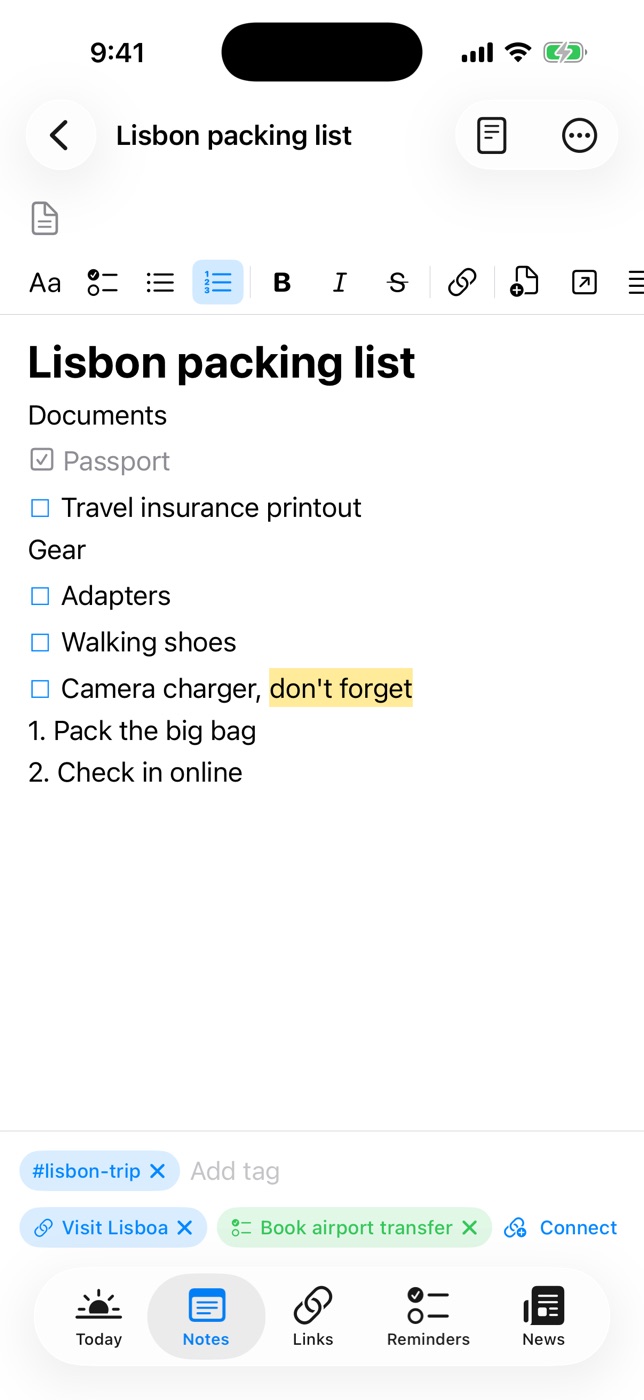
Notes are pages, and pages can live inside other pages, like a notebook with chapters.
- New page: tap the compose button. Give it an emoji icon if you like.
- Commands: type / at the start of a line for headings, bulleted, numbered and check lists, quotes, code, a divider, a new page inside this one, or a link to another page. The same blocks are buttons on the Aa format panel.
- Formatting: bold, italic, underline, strikethrough, highlight, text colour and links. Apple Notes keyboard shortcuts work on iPad and Mac.
- Markdown view: notes are stored as Markdown. Use the document button in the toolbar to switch to the source, styled as you type.
- Organise: drag pages to reorder or nest them, or use Move To. Star a page to pin it under Favorites. Breadcrumbs at the top take you back up the tree.
- Trash: deleting a page moves it and its sub-pages to the Trash for 30 days.
- Export: share a note as Markdown (with tags and dates as front matter) or as a paginated PDF.
Pages you embed show as tappable blocks whose titles stay current. Each page also lists the pages that link to it.
Locking notes
- Open Settings (the gear on Today, or the Settings window on Mac) and set a notes PIN. You can also turn on Face ID or Touch ID.
- Long-press a note in the list and choose Lock Page, or use the lock menu in the note's toolbar.
- To read it, unlock with Face ID / Touch ID or your PIN. Locked notes lock again when the app goes to the background.
Links
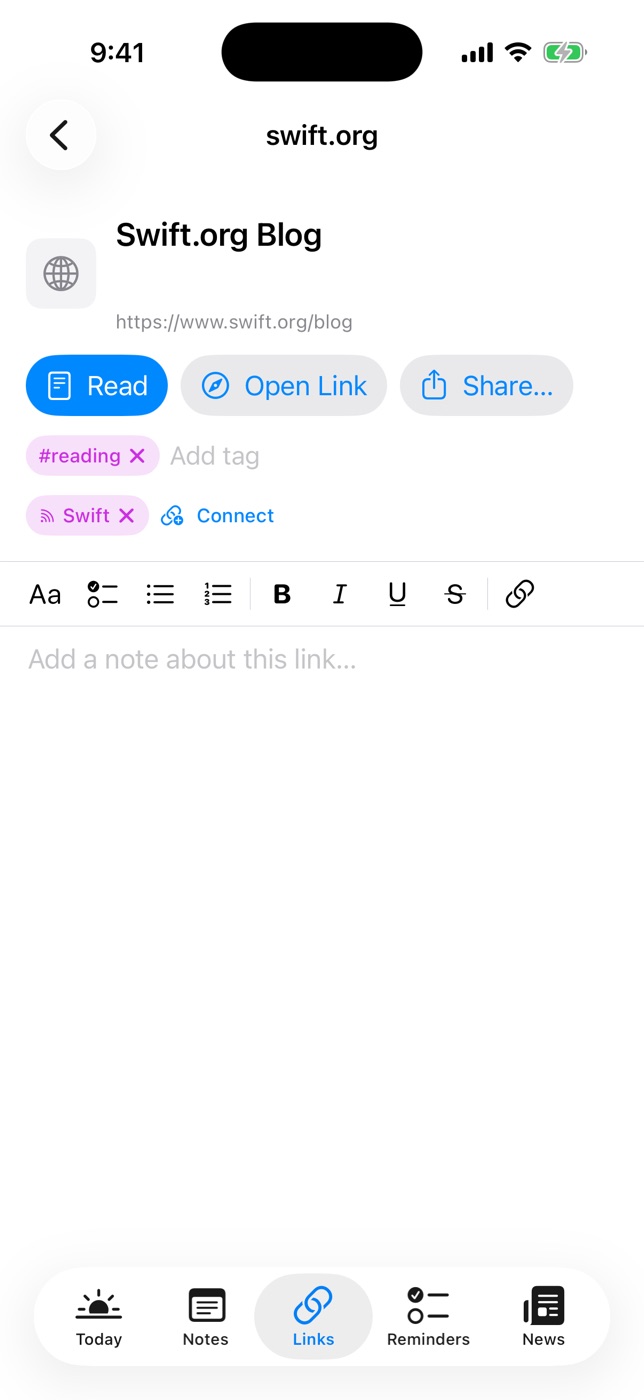
- Save a link: tap + in Links and paste a URL, or save a story from the News reader. The title and icon are fetched for you.
- Read offline: each link's text and a few images are saved on the device. Tap Read for the clean reader view, or Open Link for the full page.
- Summaries: recent links get a short on-device summary under the title in the list.
- Add context: write a rich-text note on the link, add tags, and connect it to related notes or reminders.
News
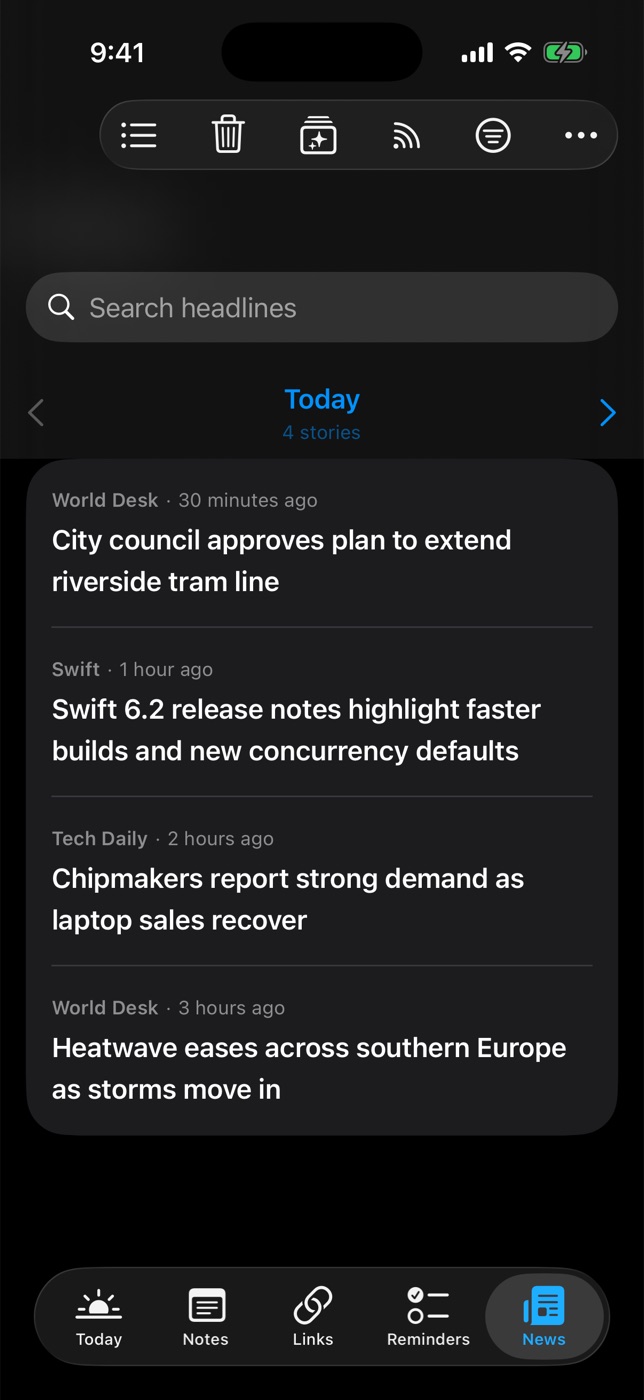
Add feeds
- In News, open Manage Feeds from the toolbar.
- Paste a website address (Daily Dash finds its RSS, Atom or JSON feed) or a feed URL. Only https feeds are supported.
- Or add a Google News topic, such as “Formula 1” or “interest rates”, in your language and region.
- Tag feeds so you can filter by them, turn off Include in Brief for feeds that shouldn't reach Today, or switch a feed to Paused for a while.
Read
- The News tab pages through stories one day at a time. Use the arrows to move between days.
- Stories open in a reader that works offline. New stories are saved in the background, and offline copies are dropped after 7 days while the headlines stay.
- Read stories dim. Long-press a story and choose Mark as Unread to undo.
- Save to Links from the reader to keep a story for good.
- Clear Old News… removes everything published before a date you choose. Cleared stories don't come back.
For You
Daily Dash notices which stories you open, read through and keep, and trains a small model on your device. Once it has enough history it picks Today's headlines, filters new-story notifications, and powers the For You sort, with a reason shown for each story.
Tags & connections
Tags are shared by everything: notes, links, reminders, news feeds, calendar events and Apple Reminders. Add one from any item's tag row. Tap a tag in the Tags view to see everything that carries it.
Connections go further: link any item to any other, such as a trip note to its flight reminder, the hotel link and the calendar event. Use Connect on any item, and Disconnect to undo. Connections appear as chips in the editor and as a count in list rows.
The Graph puts one item in the middle with everything it touches around it. Tap a neighbour to walk to it. On iPhone the Graph opens from the button at the top of Today.
Sync & devices
- Notes, links, reminders, tags, feeds, saved places and connections sync through your iCloud account.
- Calendars and Apple Reminders sync the way they always do, through the system.
- Offline copies of articles are fetched separately on each device, so every device can read offline.
- On iPhone and iPad, background refresh keeps calendar, reminders, the brief and feeds current, and sends them to your watch.
Apple Watch
The watch app shows today's schedule, your reminders, and the brief and headlines from your iPhone. Open Daily Dash on your iPhone once after installing so it can send the first update.
FAQ
Why does my brief say “Basic summary”?
Apple Intelligence wasn't available when the brief was written, for example on a device that doesn't support it or while the model downloads. The brief is rewritten with Apple Intelligence next time you open the app, if it's available.
Does Daily Dash have an account or a server?
No. Your data stays on your devices and in your own iCloud. See the privacy policy.
Why didn't my location reminder fire on my Mac?
macOS can't trigger alerts by location. Set it on any device and it will alert on your iPhone or iPad.
A feed won't add.
Daily Dash only supports https feeds. Try pasting the site's home page instead of the feed so it can discover the right address.